
Use STRIV with your Garmin watch
Connect your insoles to your Garmin watch and get real-time coaching cues on your wrist.
Updated Oct 2026Install the app on your watch
Install Striv Smart Insole from the Garmin Connect IQ Store. Check your watch is listed on the store page.
Leave your phone behind
Run with just the watch. If your phone is nearby, the insoles may connect to it instead of the watch.
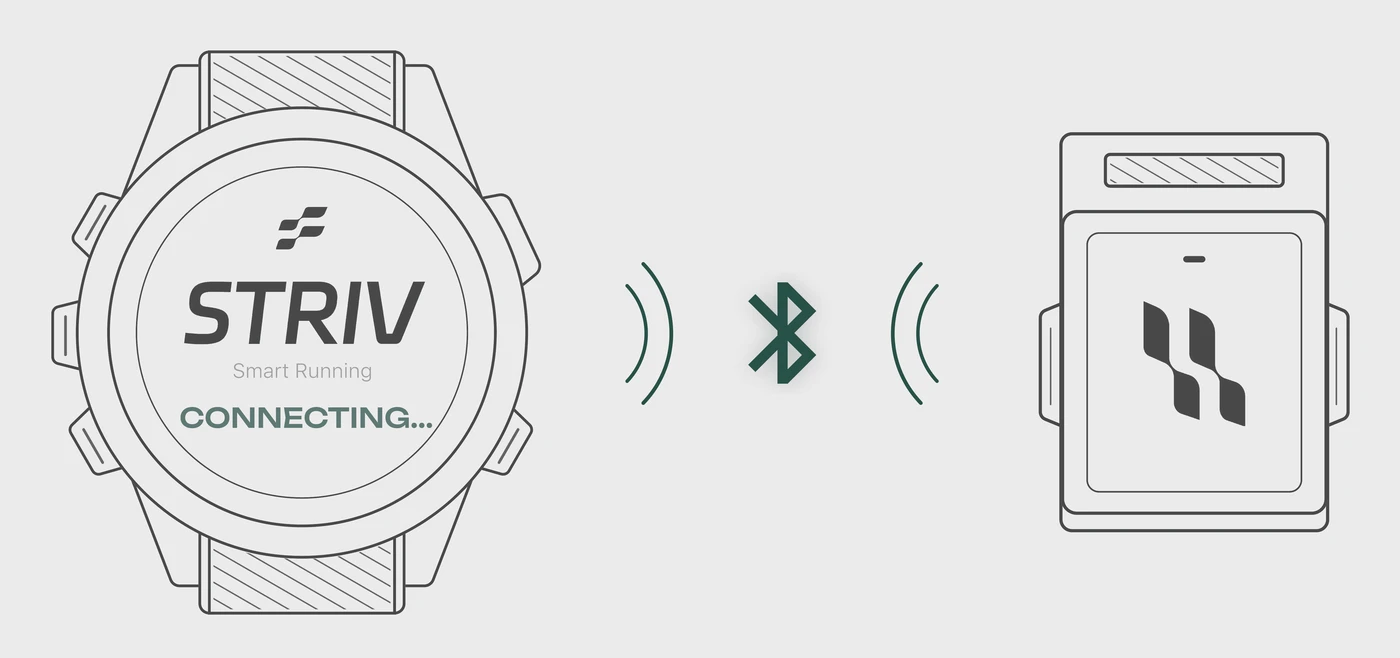
Open Striv on the watch
The app shows the connection for your left and right insoles.
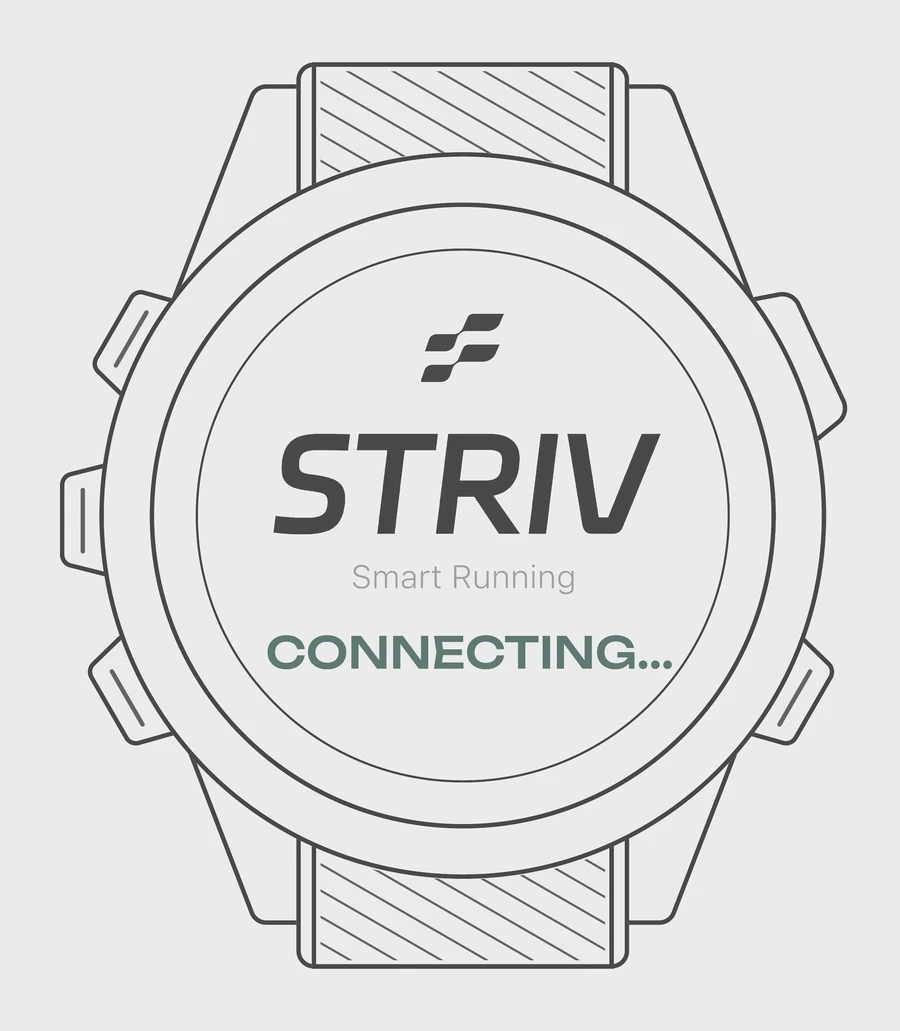
Press to start
PRESS TO START appears once at least one insole is connected. Press it to start your run.
Run
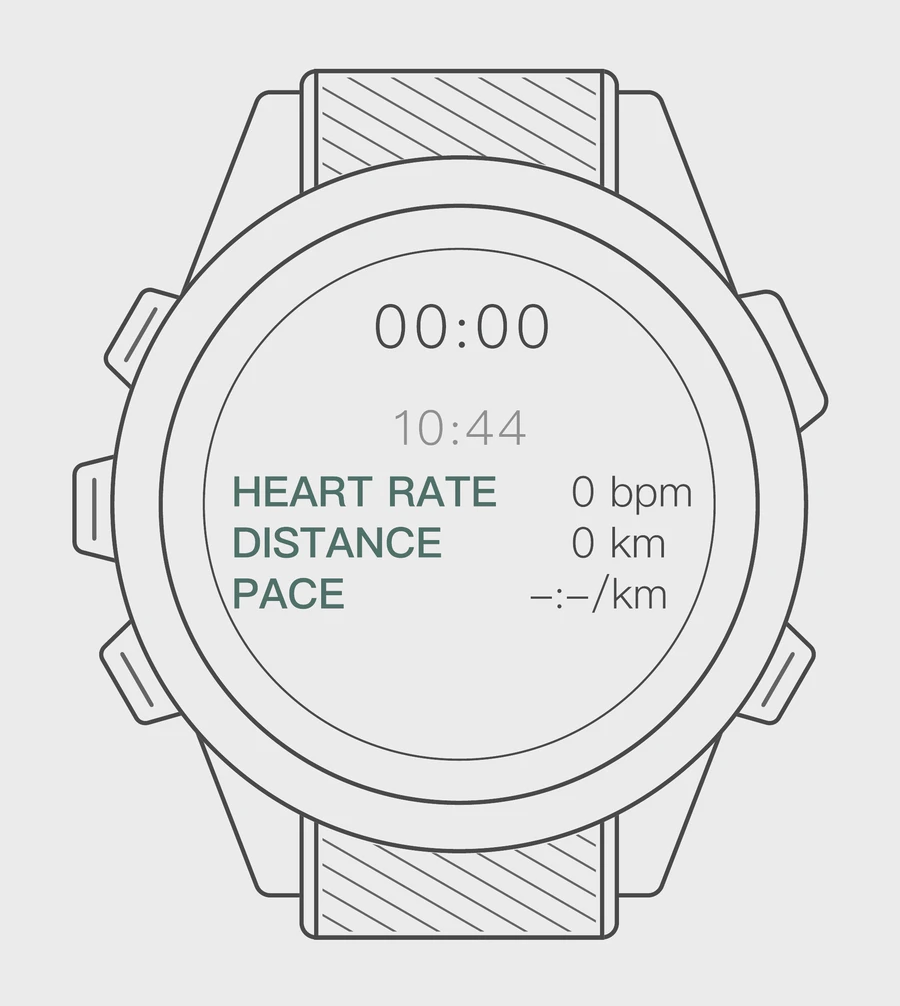
Your watch shows:
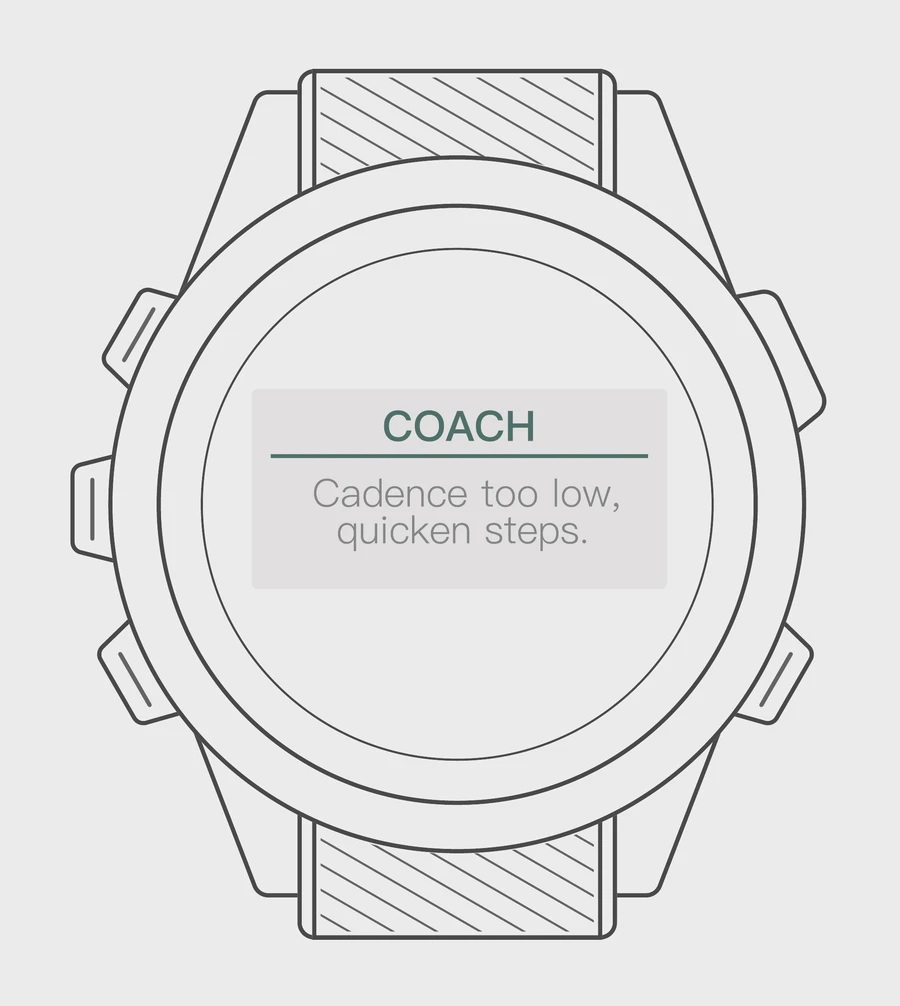
- Coaching
- Real-time cues on your wrist
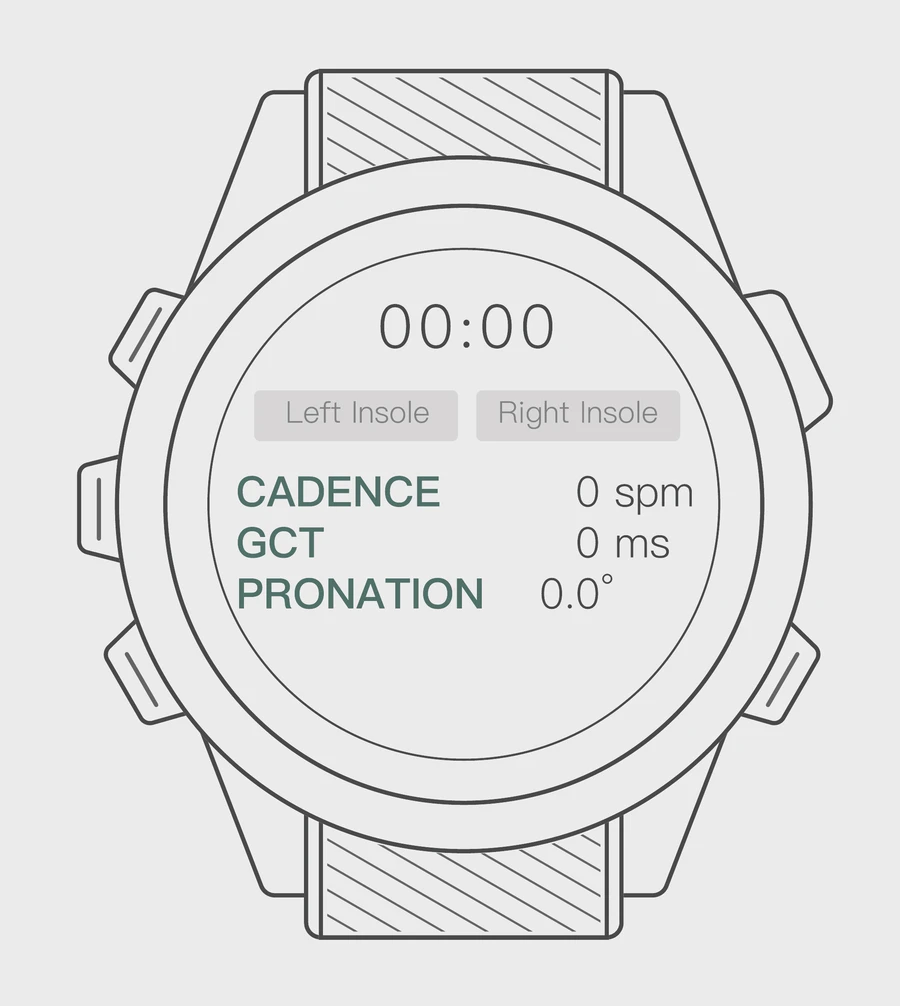
- Connection
- Live left / right status
- Gait
- Cadence, ground contact time, pronation
- Run
- Distance, pace and heart rate, from the watch
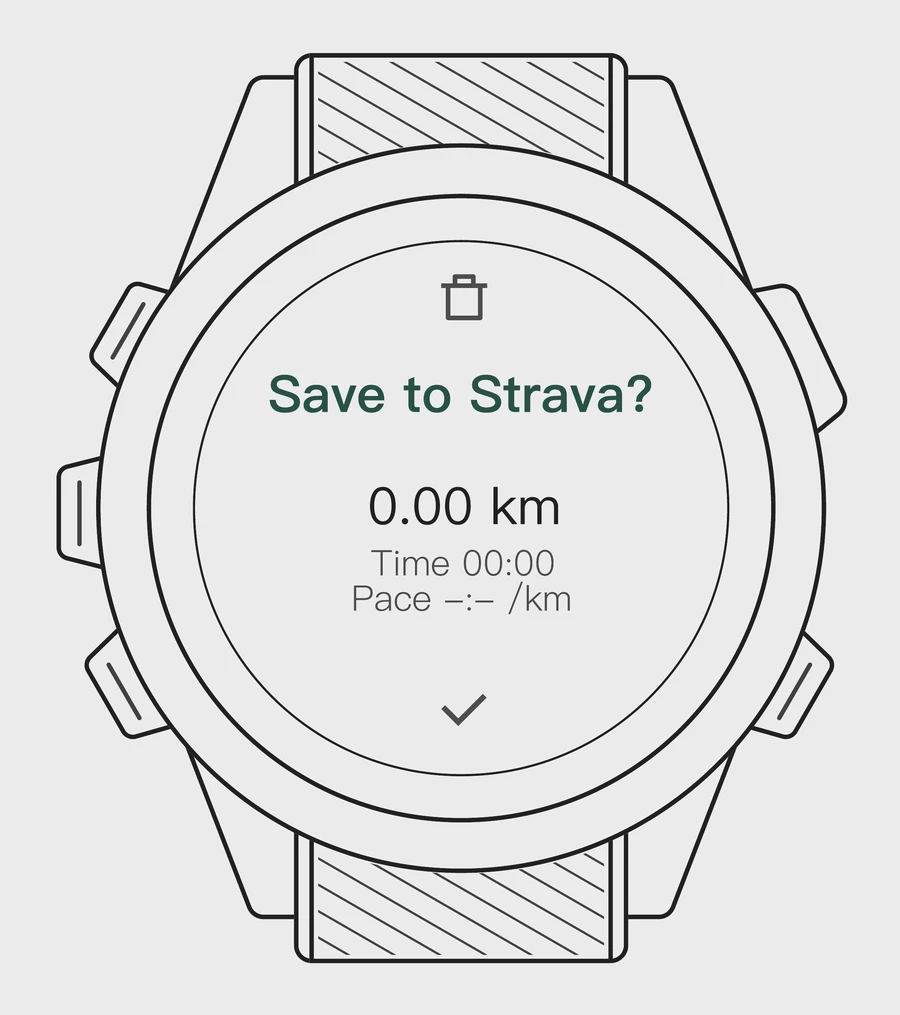
Save to Strava
When you finish, the watch asks Save to Strava? Save the run or discard it.
Sync to the STRIV app
For post-run analysis, sync the run in the STRIV app: open the insole badge (INSOLES) and tap SYNC.
- Leave your phone behind on watch runs. If it is nearby, the insoles may connect to it instead.
- You can start with one insole connected. The watch shows each side's connection live.
- Distance, pace and heart rate come from the watch.
Which Garmin watches work?
Check that your watch is listed on the Striv Smart Insole store page.
Why won't the insoles connect to my watch?
Your phone may be nearby and connected to them. Move away from the phone, or leave it at home, and open Striv on the watch again.
Still can't connect?
Restart the watch first. Still stuck? Email info@striv.run.
Why can't I press start?
PRESS TO START appears once at least one insole is connected.

Still stuck? Message us